How to Set Up Claude Code: A Guide for Beginners

AI summary
- Installing Claude Code takes two minutes, but building a sustainable folder structure requires following five levels: role, tasks, projects, knowledge, and tools.
- The global CLAUDE.md file in ~/.claude/ holds your role and style, while project CLAUDE.md files describe only that specific client or venture context.
- Claude Code requires a paid account such as Pro, Max, Team or Enterprise, and minimum system requirements include 4 GB RAM and macOS 13, Windows 10, Ubuntu 20.04 or Debian 10.
- Skills are recurring weekly tasks stored in ~/.claude/skills/ with a SKILL.md file, and auto memory is written by the agent itself in ~/.claude/projects/ up to 200 lines or 25 KB per session.
Generated with AI, the details are in the article.
Table of contents
Installing Claude Code takes two minutes. Then you sit in front of an empty terminal and wonder where client files, templates, rules and everything the agent should remember are supposed to go. That is exactly where almost every guide stops. The top Google results, including Reddit threads and YouTube videos, show the install command and the first few commands, but no structure you can still work with three months later[17].
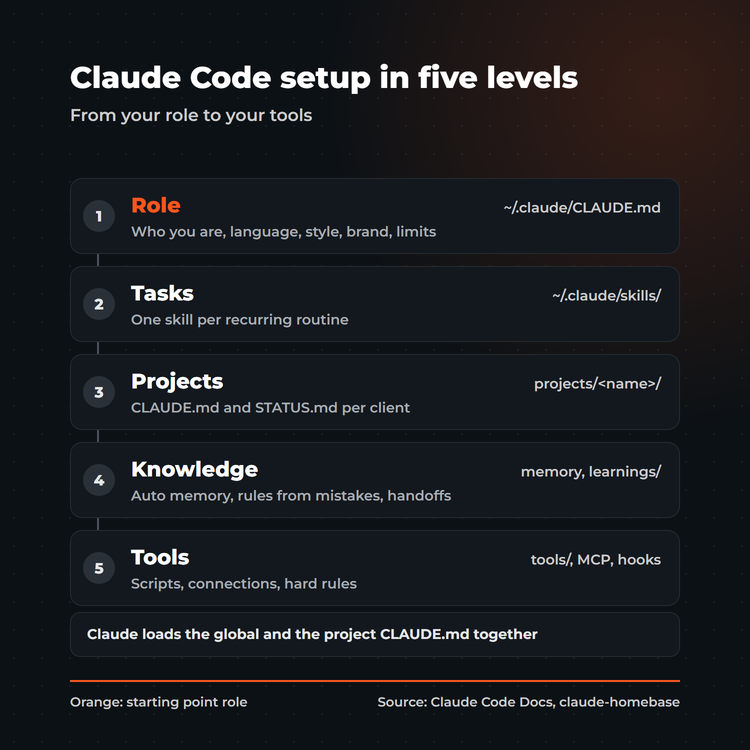
This guide goes further. You will learn how to set up Claude Code on Windows, macOS and Linux, and how to build a folder and knowledge structure that fits any role, even if you never write code. The idea behind it is a chain of five levels:
| Level | Question | Where in Claude Code |
|---|---|---|
| Role | Who are you, who do you work for? | ~/.claude/CLAUDE.md |
| Tasks | What do you do the same way every week? | ~/.claude/skills/ |
| Projects | What are you working on right now? | one folder per client or venture |
| Knowledge | What should the agent remember? | memory, learnings, handoffs |
| Tools | What should it operate? | scripts, MCP servers, hooks |
If you would rather not build this by hand: at the end of the article I show you Claude Homebase, a free template that walks you through exactly this process as an interview[12].
How to install Claude Code step by step
System requirements and plan
Claude Code is an AI coding agent from Anthropic. The system requirements are modest: macOS version 13 or later, Windows 10 version 1809 or later, Ubuntu 20.04 or later or Debian 10 or later, at least 4 GB of RAM and an internet connection[1].
One thing to know before you start: you need a paid account, meaning Pro, Max, Team, Enterprise or a Console account with API credit. The free claude.ai plan does not include Claude Code[1]. If you have never used a terminal, the beginner page of the official docs shows how to open one and paste a command[11].
Install on macOS, Linux and WSL
Open the terminal and paste this line. It is the native installer Anthropic recommends[1]:
curl -fsSL https://claude.ai/install.sh | bashYou will see no progress bar while it downloads, so wait until it finishes. A native installation then updates itself in the background. If you install with Homebrew or WinGet, you trigger updates manually[1]. Many older guides still mention npm install. The setup page lists that route too. It still works, but it adds a dependency: Node.js version 22 or later[1].
Install Claude Code on Windows
On Windows, open PowerShell (the prompt starts with PS C:\) and enter:
irm https://claude.ai/install.ps1 | iexYou do not need administrator rights[1]. If the window says irm is not recognized, you are in the classic Command Prompt (CMD). For CMD, the setup page lists its own variant[1]:
curl -fsSL https://claude.ai/install.cmd -o install.cmd && install.cmd && del install.cmdThree things worth knowing on Windows:
- Git for Windows is optional but recommended. It lets the agent run commands through Git Bash. Without Git, Claude Code uses PowerShell[1].
- Your configuration folder lives at
%USERPROFILE%\.claude, for exampleC:\Users\yourname\.claude. Whenever a guide says~/.claude, it means this folder[4]. - WSL or native: native is enough for most beginners. A sandbox that isolates commands is only available on WSL 2[1].
Desktop app and VS Code as alternatives
Don't want a terminal? The desktop app from Anthropic for macOS, Windows and Linux includes Claude Code. You pick the "Code" tab, choose a folder and start, with no Node.js, no command line and no other dependencies to install[9]. If you already work in an editor, there is an extension for VS Code version 1.94 or later. It uses the same settings files as the command line[8]. So you can run Claude Code in three places, and everything in this article applies to all of them.
First start, authentication and /init
Open a new terminal window and check the installed version with claude --version. If you see a version number, you are good to go. Then move into your working folder and run claude. On first launch your browser opens for authentication: you log in with your Claude account once[1].
A few shortcuts are all you need at the start: /help lists everything available, /clear wipes the conversation, /exit ends the session, and Shift+Tab switches the permission mode, for example into plan mode[2]. /init creates a first CLAUDE.md for the current folder. If one already exists, the tool suggests improvements instead of overwriting it[3]. For code projects that is a good start. For client work, writing and other non-code projects you need the structure from the next section.
Troubleshooting: if the terminal cannot find claude, you probably still have the old window open. Close it and start a new one. If something else looks wrong, run claude doctor. It checks whether installation and configuration are healthy[1].
The architecture: role, tasks, projects, knowledge, tools
The chain follows a simple logic. Your role decides which tasks you repeat. The tasks decide how you organise projects. From there it follows what the agent should remember and which tools it needs.
Global CLAUDE.md file and project CLAUDE.md
The CLAUDE.md file is a plain text file with instructions that the agent reads at the start of every session. It exists on two levels, and separating them is the most important step of the whole configuration[3]:
- Global:
~/.claude/CLAUDE.mdapplies to all projects. It holds your role, language, style, brand and hard limits, such as "never send or publish without my approval". - Project:
CLAUDE.mdin the project folder describes only that project: client, goal, contacts, no-gos. - Private:
CLAUDE.local.mdin the project folder for personal notes that should stay out of the Git repository.
When you start a session in a folder, Claude Code loads the CLAUDE.md of that folder and of every folder above it and joins them together. Files in subfolders are added only when the agent works there[3]. Your role is present everywhere, client context only where it belongs.
Keep each file under 200 lines. Longer files use more context and are followed less reliably[3]. The docs suggest a simple test for every line: would the agent make mistakes without it? If not, cut it[10].
Tasks become skills
Anything you do every week in the same steps becomes a skill: writing an offer, building a report, following up on a meeting, drafting a blog post. A skill is a folder with a SKILL.md file. Name and description sit at the top, the steps below. Personal skills live in ~/.claude/skills/<name>/, project skills in .claude/skills/ inside the project[5].
At startup the agent only sees the descriptions. It loads the content when a task matches or when you call the skill with /name[5]. That is why knowledge you need only now and then belongs in a skill and stays out of CLAUDE.md[10]. Put the words you actually use for the task into the description, for example "offer", "quote", "proposal". The skills I use every day as a developer are in Best Claude Code skills for developers.
Projects: one folder per client or venture
Every client and every venture gets its own folder with the same basic kit[12]:
projects/
└── client-a/
    ├── CLAUDE.md          client context, goals, no-gos
    ├── STATUS.md          status, decisions, next steps
    ├── communication/     mails, meeting notes
    └── 2026-10-25_offer/  results per task, dated
STATUS.md is the entry point for every new session. You say "Read STATUS.md and tell me the next step" and the agent is up to speed in seconds. You see the current state at a glance, and dated task folders prevent the flat pile of files where nobody finds anything after three weeks. The Claude Code SEO Starter ships a ready client folder template of this kind[14].
Knowledge: Claude Code memory, learnings and handoff
Claude Code has two memories. You write CLAUDE.md. Auto memory is written by the agent itself when you correct it or state a preference. It lives per project in ~/.claude/projects/<project>/memory/, and each session loads the first 200 lines or 25 KB of the index file MEMORY.md[3]. /memory lets you see every loaded file and switch auto memory on or off.
Two more building blocks are yours to create:
- Learnings: a folder
~/.claude/learnings/with one file per topic (writing, tools, collaboration) and an index. Every correction becomes a one-sentence rule with its reason and date. The same mistake does not happen twice, and CLAUDE.md stays lean[16]. - Handoff: long sessions get slow and expensive, which is why the docs recommend
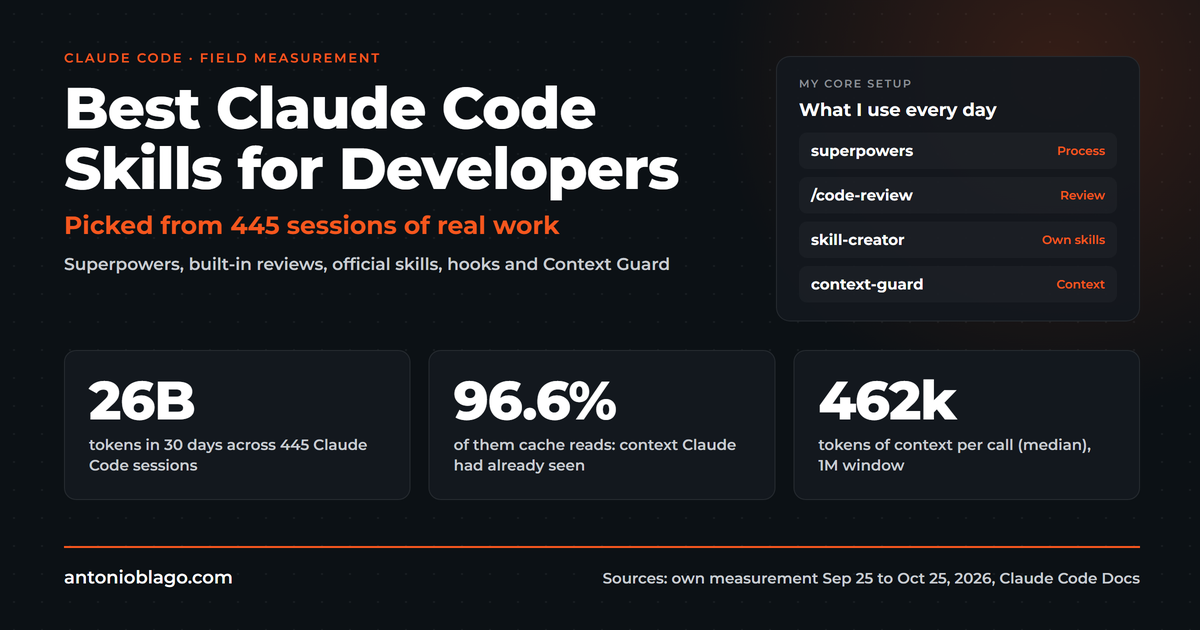
/clearbetween tasks[10]. Afterwards, though, the agent no longer knows what it was working on. A short handoff briefing in a file fixes that. In my own measurement, 96.6% of all tokens were context that had already been read[18]. My free repo Context Guard warns you when the context gets large and loads the briefing into the new window after/clear[13].
Tools: scripts, MCP and hooks
The last level is the tools the agent works with:
- Scripts: when the same routine runs by hand for the third time, have the agent write a script in a
tools/folder. Faster, cheaper and the same result every time. - MCP servers: connect Claude Code to external services such as Search Console, Notion or your CMS. You add them with
claude mcp add --transport http <name> <url>, either just for you or as.mcp.jsonfor the whole project. Only add servers you trust, because outside content can inject instructions[7]. - Hooks: small shell commands that always run at fixed moments, for example before every tool call or when a session starts. Unlike instructions in CLAUDE.md, they are binding[6]. The docs describe CLAUDE.md as context that guides the agent. Anything that must never happen therefore belongs in a hook[3]. With
/hooksyou can see which hooks are active[6].
Set up security from day one
Claude Code reads and writes files on your machine. Three safeguards are worth putting in place on the very first day.
1. Define permissions. In ~/.claude/settings.json you use allow, ask and deny to decide what the agent may do without asking, where it has to ask and what is blocked[4]. A good start for beginners:
{
  "permissions": {
    "deny": ["Read(./.env)", "Read(./**/.env)", "Edit(./.env)"],
    "ask": ["Bash(git push *)", "Bash(rm *)"]
  }
}
With this, the agent can neither read nor change the credentials in your .env files, and it asks before deleting and before every push[12]. Personal settings for a single project go into .claude/settings.local.json, which is not shared[4].
2. No secrets in cloud sync. Many people keep their working folder in OneDrive, Dropbox or iCloud. That is handy for backups, but API keys and passwords do not belong there. Keep them in one central file outside the synced folder and write into CLAUDE.md only where they are, never the values[12].
3. Review before you enable. That goes for MCP servers[7] as much as for skills from the internet. A skill is a list of instructions the agent follows, so read it first. If you build your own skills, delegate-audit checks them against typical failure points in multi-step AI workflows[15]. The background is in AI hallucinations and DELEGATE-52.
Claude Homebase: the setup as an interview
You can create all of the above by hand. It is faster with Claude Homebase, a free template on GitHub under the MIT license[12]. It consists of one skill, /homebase, plus matching templates. The skill interviews you, saves every answer and builds your environment from them.
Install: download the repository from its GitHub page (with git clone or as a ZIP) and copy the folder skills/homebase into your skills folder. On macOS or Linux:
git clone https://github.com/AntonioBlago/claude-homebase.git
mkdir -p ~/.claude/skills && cp -r claude-homebase/skills/homebase ~/.claude/skills/
On Windows you copy the same folder to %USERPROFILE%\.claude\skills\, for example with Copy-Item -Recurse in PowerShell. Restart Claude Code and type /homebase.
What the skill asks, one question at a time, with examples to choose from[12]:
- Role: what you do and for whom, plus language and form of address.
- Goals: three results the setup should help you reach in the next 90 days.
- Recurring tasks: three to seven routines, each one a skill candidate.
- Infrastructure: operating system, plan, terminal, VS Code or desktop app, Git, cloud folder, hosting, services for MCP.
- Start folder: where your home base should live, with the reminder to keep secrets out of synced folders.
- Starter path: SEO, developer, content, AI visibility or long-term memory.
- Brand (optional): colours, fonts, existing templates.
What it builds: a global CLAUDE.md from your role (under 200 lines), the folder structure with a first real project, one to three skills for your most important tasks, the learnings folder, the security rules with a blocked .env, and a homebase-profile.md with all your answers. Run /homebase again later and it only asks what is missing. If you want, it adds a Git backup and installs Context Guard[12].
Two rules are built in. The skill never overwrites an existing file; it shows it to you and proposes a merge. And it never asks for passwords or API keys. At most it asks where you keep them, so the agent knows the location[12]. Depending on the starter path it points you to matching repos such as the SEO Starter[14] or Context Guard[13].
Get Claude Homebase free on GitHub
Real example: a freelancer setup with client folders
This is what the structure looks like for me as an SEO freelancer and founder after a few months, shortened and without client names[16]:
~/.claude/
├── CLAUDE.md            role, brand, working rules, language
├── settings.json        permissions, hooks
├── skills/              80+ skills: offer, blog post, meeting, handoff ...
├── learnings/           eight topic files plus an index
└── handoffs/            handoffs per project

working folder/
├── CLAUDE.md            map of the folders
├── SEO Projects/
│   └── <client>/
│       ├── PROJEKTSTAND.md      project status
│       ├── Kommunikation/       mails, meetings
│       └── YYYY-MM-DD_<task>/
├── Content Automation/  one dated folder per piece
└── claude_tools/        my own Python tools
Three things have proven themselves. First, all client work starts with the status file: status in one sentence, contacts, offers, decisions and next steps. Second, every recurring task is a skill, from offers and meeting follow-ups to blog posts. This article was made with a skill too, in its own dated folder with research, outline, draft and graphics. Third, two hooks always run along: the context guard with its handoff briefing, and a warning when a time tracker has been running too long without a stop[16].
It all started with one CLAUDE.md and one client folder. Everything else grew out of corrections. How this system now carries more than 100 SEO projects is in Agentic engineering: 100+ SEO projects solo with AI. For developers, my collected production pitfalls are available as the Vibe Coding Set (in German), including the projekt-start skill that prepares a new code project with the same pattern.
FAQ
How do I install Claude Code as a beginner?
Open the terminal on macOS or Linux, or PowerShell on Windows, and paste the matching line from this guide. Then open a new window, check with claude --version and log in through the browser on first launch[1]. If the terminal is new to you, see the beginner page of the docs[11] or use Claude Code in the desktop app instead[9].
How much does it cost to use Claude Code?
Claude Code is included in the paid Pro, Max, Team and Enterprise subscriptions. Alternatively you pay per use through a Console account with API credit. The free claude.ai plan does not include it[1]. See the Anthropic pricing page for current prices per plan.
Can I use Claude Code without coding skills?
Yes. For the setup you need to be able to paste a line, nothing more. The desktop app works without any command line or extra dependencies[9]. The structure of role, tasks, projects, knowledge and tools in this guide is designed for people who work with text, clients and files rather than code.
What is the difference between Claude Code and the Claude web interface?
In the web interface at claude.ai you chat with Claude in the browser. Claude Code works directly inside your folders: it reads and writes files and runs commands, within the permissions you grant[4]. It also keeps project knowledge in CLAUDE.md files and auto memory on your own machine[3]. The free claude.ai plan covers only the chat[1].
How does Claude Code compare to ChatGPT Codex for developers?
Both are coding agents built on a large language model: Codex comes from OpenAI, Claude Code from Anthropic. The setup ideas in this guide carry over, because both work best with a short instruction file, repeatable workflows and clean project folders. One detail helps when you switch: Claude Code reads an AGENTS.md file if a folder has no CLAUDE.md[3].
What is the fastest way to set up Claude Code as a software engineer?
Use the native installer, go to your repository and run /init to generate a project CLAUDE.md from the codebase[1][3]. Then add the deny rules for .env files from the security section and work in plan mode for larger changes[10]. Personal conventions go into the global CLAUDE.md, so every repository starts with them.
Conclusion
Installing Claude Code is a single command. Setting it up means answering five questions: who you are, what repeats, what you are working on, what the agent should remember and what it should operate. Start small: a global CLAUDE.md with your role, one project folder with a STATUS.md, one skill for your most frequent task and a blocked .env. After every correction, add a rule to your learnings. If you want to skip the building, Claude Homebase walks you through every step in one session.
Read more
- Best Claude Code skills for developers: picked from 445 sessions
- AI hallucinations in multi-step workflows: DELEGATE-52
- Agentic engineering: 100+ SEO projects solo with AI
- Agentic SEO systems 2026: Claude Code as an SEO control center
Sources
- Anthropic, official docs: Advanced setup, accessed Oct 25, 2026
- Anthropic, official docs: Quickstart, accessed Oct 25, 2026
- Anthropic, official docs: How Claude remembers your project, accessed Oct 25, 2026
- Anthropic, official docs: Settings, accessed Oct 25, 2026
- Anthropic, official docs: Skills, accessed Oct 25, 2026
- Anthropic, official docs: Hooks guide, accessed Oct 25, 2026
- Anthropic, official docs: MCP, accessed Oct 25, 2026
- Anthropic, official docs: VS Code, accessed Oct 25, 2026
- Anthropic, official docs: Desktop quickstart, accessed Oct 25, 2026
- Anthropic, official docs: Best practices, accessed Oct 25, 2026
- Anthropic, official docs: Terminal guide, accessed Oct 25, 2026
- AntonioBlago/claude-homebase. github.com/AntonioBlago/claude-homebase, MIT license, Oct 25, 2026
- AntonioBlago/claude-context-guard. github.com/AntonioBlago/claude-context-guard, MIT license, Oct 25, 2026
- AntonioBlago/claude-code-seo-starter. github.com/AntonioBlago/claude-code-seo-starter, MIT license, Oct 25, 2026
- AntonioBlago/delegate-audit. github.com/AntonioBlago/delegate-audit, Oct 25, 2026
- The author's own working environment, structure anonymised, as of Oct 25, 2026
- Own review of Google results for "claude code installieren" (Germany) and "how to set up claude code" (US), Oct 25, 2026
- Own measurement of local Claude Code session transcripts, Sep 25 to Oct 25, 2026, published in Best Claude Code skills for developers
Visibly AI: your SEO copilot
Projects, rankings, Search Console data and a copilot that runs the analysis for you. Start for free.

About the Author: Antonio Blago
SEO Freelancer & AI Visibility Expert
I optimize SEO data-driven with Python, behavioral psychology, and my Neuro-SEO System®. On YouTube, LinkedIn, and Instagram I share hands-on tutorials, insights, and SEO strategies.